
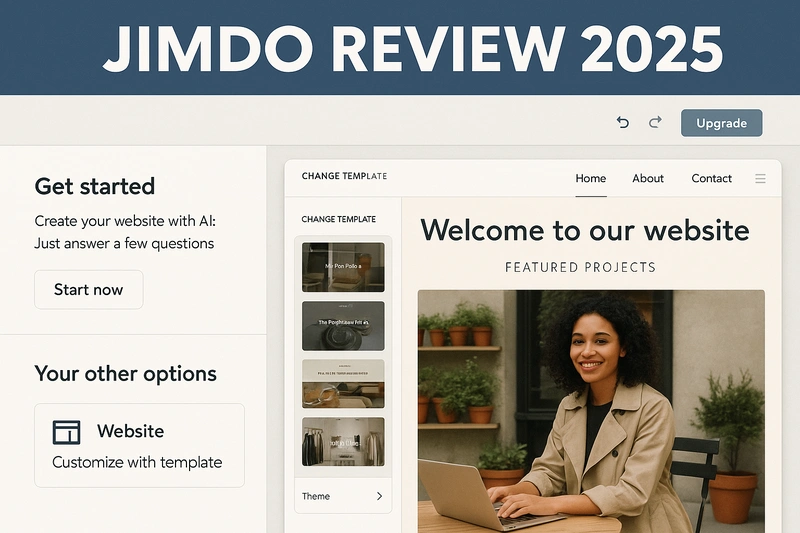
Not everyone wants to build a fancy website with animations, deep SEO tools, or endless customization. Some people just want to get online, say “here’s what I do,” and move on with life. That’s where Jimdo comes in.
It promises a fast and no-fuss setup, using AI to build your site in minutes. No coding, no dragging boxes around, no designer headaches. Sounds perfect, right?
Well, only if your needs stay small. Because the moment you try to grow, tweak layouts, or blog seriously, Jimdo starts to feel like a tool built for yesterday.
In this review, I’ll break down what Jimdo actually offers, what real users are saying, and whether it’s still a smart choice in 2025 — or a platform that’s better left behind.
Quick Summary
Jimdo is a simple, AI-powered website builder made for beginners. If you want a basic site live in 10 minutes, it does the job. But if you care about customization, blogging, or long-term growth, you’ll hit limits quickly.
✅ Best For
- Non-tech users who want to get online fast
- Local businesses in Europe (comes with built-in legal tools)
- Personal, portfolio, or one-page websites
❌ Not Ideal For
- Bloggers, content creators, or marketers
- Designers or developers who want layout freedom
- Businesses planning to scale or redesign later
💸 Pricing (Website Plans)
- Free plan available
- Paid plans range from $9 to $45 per month
- Separate pricing for online store plans
👍 Pros
- Very beginner-friendly AI setup
- Mobile-friendly editor
- Legal and GDPR tools included
👎 Cons
- Very limited customization options
- Weak blogging and SEO features
- Complaints about support and billing issues
What is Jimdo?
Jimdo is a simple, no-code website builder that helps you create a functional website quickly. You don’t need any design skills, coding knowledge, or even much time. Just answer a few questions, and Jimdo’s AI tool, called Dolphin, builds a complete website for you.
It’s made for beginners and solo business owners who want something clean and fast, without getting into the technical side of things. There’s no complex drag-and-drop editor like Wix or Webflow, and that’s exactly how Jimdo positions itself — minimal setup, minimal thinking.
The platform is especially popular in Europe because of its built-in GDPR compliance tools, like cookie banners and automatic legal pages. For small local businesses that just need a web presence, it checks all the basic boxes.
However, Jimdo isn’t designed for users who want to scale, run a content-heavy blog, or build complex pages. It’s more like a digital business card than a full-fledged website platform.
How Jimdo Works (Dolphin vs Creator)
When you sign up for Jimdo, it asks you to choose between two versions: Dolphin and Creator. This choice is permanent, so it’s important to understand the difference before moving ahead.
Jimdo Dolphin (AI Builder)
This is the version most new users will see by default. It’s designed to build your entire website automatically using AI.
- You answer a few simple questions about your business, colors, and site goals
- Dolphin creates the full layout, adds placeholder content, and sets up your navigation
- You can make basic edits, but layout control is very limited
Dolphin works well for people who just want a site live quickly, without dealing with design decisions. But it’s not a good fit if you want to customize how your site looks or functions.
Jimdo Creator (Manual Builder)
Creator is the older version, offering more manual control.
- You choose a template and add content manually
- It gives slightly more layout flexibility compared to Dolphin
- The editor feels dated and lacks the freedom of tools like Wix or Webflow
Jimdo doesn’t promote this version anymore, but some users still prefer it for its extra control, even if the experience feels less modern.
Features Walkthrough
Jimdo isn’t loaded with advanced tools, but it gives you enough to create a small website quickly. Most features depend on which version you’re using (Dolphin or Creator), and which pricing plan you’re on. Here’s a closer look at what you actually get.
Website Builder Experience
Jimdo Dolphin uses a block-based builder. You don’t drag and drop elements freely like in Wix. Instead, you select full pre-made sections like “About,” “Services,” or “Testimonials,” and stack them one after another.
It’s extremely beginner-friendly. You won’t get stuck figuring out design details — because you’re not allowed to touch them much.
You can:
- Add or delete sections
- Change images and text
- Rearrange the order of blocks
You can’t:
- Move elements freely on the page
- Adjust spacing, padding, or alignment manually
- Add custom CSS or HTML (unless using Creator)
It’s fast and simple, but very limiting if you’re someone who wants full creative control.
Templates and Design Customization
Jimdo offers a small collection of templates. They’re decent-looking and mobile-friendly by default, but not very unique.
Customizations include:
- Changing fonts and color palettes
- Switching out default images
- Adding your logo and social links
However:
- You can’t tweak individual design elements
- All layouts follow the same block structure
- Most templates end up looking similar
In short, you’ll get a clean website, but it may look like hundreds of other Jimdo sites.
Blogging
This is one of Jimdo’s weakest features, especially in the Dolphin version.
In Dolphin:
- There’s no built-in blog functionality at all
- You can try to “fake” it by stacking text/image blocks manually, but it’s clunky
In Creator:
- You get a basic blog module
- No tags or categories
- No scheduled publishing
- No built-in commenting or RSS
- Blog layout looks outdated and stiff
If blogging is a core part of your content strategy, Jimdo should be avoided.
SEO Tools
SEO in Jimdo is functional but very limited, especially in Dolphin.
You can:
- Set custom page titles and meta descriptions
- Set image alt text
- Add Google Analytics and Facebook Pixel (Grow plan or higher)
You can’t:
- Add structured data (Schema markup)
- Create SEO-friendly blog URLs (no control in Dolphin)
- Add canonical tags or edit sitemap manually
Jimdo sites can rank on Google for low-competition keywords, but if SEO is important, it’s not a strong choice.
E-commerce Capabilities
Jimdo includes basic e-commerce features in its store-specific plans (Basic, Business, VIP).
What you get:
- Product pages with images, descriptions, and variants
- Built-in PayPal or Stripe checkout
- Automatic tax calculation
- Order tracking dashboard
Limitations:
- No integration with Amazon, Etsy, or dropshipping tools
- No support for digital downloads
- No multi-language product catalogs
- No abandoned cart recovery
It’s fine for a small store with under 20 products, but it won’t scale well.
Legal Tools (Great for EU users)
One of Jimdo’s standout features is its legal support for European businesses. It includes:
- GDPR-compliant cookie banners
- Automatic legal text generators (Privacy Policy, Impressum, etc.)
- Legal warning protection (Germany-focused)
This is very rare among website builders, and genuinely useful if you’re operating in the EU.
Mobile App
Jimdo has a mobile app for both iOS and Android. You can:
- Edit text and images
- Upload blog posts (if on Creator)
- Track site visitors
- Respond to contact form submissions
The app is decent for quick changes or updates while on the go, but it’s not meant for full editing or design work.
Real Pros (from actual users)
Jimdo isn’t trying to be the most powerful website builder — and that’s exactly why some users like it. It’s simple, fast, and focuses on doing just a few things right. Here’s what actual users consistently praised:
✅ Extremely easy for beginners
Users on Reddit and Capterra say Jimdo is one of the easiest platforms they’ve ever touched. The setup process feels like filling out a short form — no design decisions, no drag-and-drop stress. Perfect for people who feel overwhelmed by tools like WordPress or Wix.
✅ Fastest site setup in its category
If you’re in a hurry, Jimdo is a lifesaver. You can go from zero to live website in under 10 minutes. The AI asks a few simple questions, then builds the full structure with placeholder content, layouts, and images — all ready for you to tweak.
✅ Legal compliance tools are a big plus (especially in Europe)
This is where Jimdo stands out. It includes built-in generators for legal pages like Privacy Policy, Terms, and Impressum, and even cookie banners. These features are especially valuable for small businesses in Germany and other EU countries with strict data laws.
✅ Clean, mobile-friendly layouts by default
Even though you can’t customize much, the final output is polished. Templates are responsive and look decent on all screen sizes. For many small business owners, this “good enough” design is exactly what they need.
✅ No coding or tech skills required
Everything is visual and simple. You don’t need to understand HTML, plugins, or page builders. You just answer questions, pick your photos, and click publish. It’s a great option for people who don’t even want to think about the word “backend.”
✅ Ad-free experience on all paid plans
Unlike some competitors (like Wix and WordPress.com), Jimdo removes its branding even on the lowest paid plan. This gives your site a more professional look without forcing you to upgrade to the most expensive tier.
✅ Mobile app is handy for quick edits
The Jimdo mobile app is useful for basic content changes, blog post updates, or checking visitor stats. You can even upload photos and publish updates directly from your phone. It’s not a full replacement for desktop editing, but it’s solid for on-the-go tweaks.
Real Cons (from actual users)
Jimdo may be fast and easy, but many users hit limitations pretty quickly. If your needs grow beyond a basic site, things can get frustrating fast. Here’s what actual users didn’t like:
❌ Extremely limited customization
This is the most common complaint across Reddit and review platforms. You can’t freely move elements, adjust spacing, or change layouts outside of the predefined blocks. Even something simple like adding a two-column section where you want isn’t possible in Dolphin. It feels like you’re locked into the structure it gives you, with only surface-level edits allowed.
❌ Templates feel repetitive and generic
While the default layouts are clean, many users said their sites looked like every other Jimdo site out there. Because you’re working with rigid blocks, there’s little you can do to make your website feel unique — even if you’re paying for a higher plan.
❌ Weak blogging tools
In Dolphin, there’s no native blog at all. In Creator, the blog exists but is very barebones. No post scheduling, no tags or categories, no commenting, and the design is outdated. If you want to build traffic through content or SEO, this is a major roadblock.
❌ SEO is too basic for serious use
Jimdo gives you meta titles and descriptions, and lets you add image alt text — and that’s about it. You don’t get advanced features like schema markup, canonical tags, or full control over URLs. Some users also noted that blog post URLs were clunky and not optimized.
❌ No app store or integrations
Unlike Wix or WordPress, there’s no plugin marketplace or third-party integrations. You can’t easily connect tools like Mailchimp, Calendly, or CRMs unless you’re doing a workaround or embedding with raw code — which defeats the whole “no-code” experience.
❌ Poor experience with support and billing
Trustpilot reviews frequently mention delayed or unhelpful customer service, especially for lower-tier plans. Several users complained about auto-renewal billing surprises and even debt collection threats for missed cancellations. This creates anxiety for users who expect simple, transparent billing.
❌ Can’t switch between Dolphin and Creator
Once you choose your editor, you’re stuck with it. There’s no way to switch your site from Dolphin to Creator or vice versa. If you realize later that you need features from the other version, you’ll have to start over.
Jimdo Pricing (Website vs Online Store Plans)
Jimdo offers separate pricing for regular websites and for online stores. All plans are billed annually, and prices can vary slightly depending on your country. There’s also a free plan available, but it comes with Jimdo branding and limited features.
Website Plans (for basic sites)
| Plan | Price (per month) | Key Features |
| Play | Free | Jimdo subdomain, ads, up to 5 pages |
| Start | ~$9 | Custom domain, no ads, email support, 10 pages |
| Grow | ~$15 | SEO tools, visitor stats, up to 50 pages |
| Unlimited | ~$39 | Unlimited pages, priority support, design support |
Online Store Plans (for eCommerce)
| Plan | Price (per month) | Key Features |
| Basic | ~$15 | Sell products, core store tools, no transaction fees |
| Business | ~$22 | Product variants, discount codes, better analytics |
| VIP | ~$39–45 | Unlimited products, VIP support, website and store designer help |
💡 Note: All paid plans include HTTPS, mobile responsiveness, and remove Jimdo branding. Store plans include payment integrations like PayPal and Stripe. Prices are billed yearly and may vary by region.
Alternatives to Jimdo
If Jimdo feels too limited, here are a few solid alternatives that give you more control, flexibility, or features — depending on your needs.
🔹 Durable
Durable is a fast AI site builder like Jimdo, but more modern-looking and slightly more flexible. It’s great for landing pages, simple business sites, and MVPs. No blog or eCommerce, though.
🔹 10Web
10Web uses AI to help you launch a WordPress site quickly. Unlike Jimdo, you get access to full WordPress features, including blogging, WooCommerce, and SEO plugins. More powerful, but also more technical.
🔹 Hostinger AI Website Builder
Good balance between simplicity and features. Offers better design flexibility than Jimdo, includes basic eCommerce, and is cheaper on long-term plans.
🔹 Framer AI
Ideal for designers, portfolios, and visually unique websites. You get more layout freedom and animations, but there’s a learning curve. Not great for beginners, but much more creative control.
Jimdo vs Other AI Website Builders (2025)
| Feature | Jimdo Dolphin | Durable | 10Web | Hostinger AI Builder |
| AI Site Creation | ✅ Yes, Q&A-based AI setup | ✅ Yes, instant one-page site generator | ✅ Yes, AI + WordPress template matching | ✅ Yes, basic AI with onboarding flow |
| Customization | ❌ Very limited, block-based | ❌ Limited in layout, some section edits | ✅ Moderate (via WordPress Elementor) | ✅ Basic drag-and-drop with restrictions |
| Design Quality | 😐 Basic and repetitive | 😊 Modern, clean layouts | 😊 Clean, flexible WordPress designs | 😊 Decent, responsive templates |
| Blogging | ❌ None in Dolphin | ❌ No blogging features | ✅ Full WordPress blogging system | ❌ Very basic (only with manual sections) |
| eCommerce | 😐 Basic store features | ❌ Not supported | ✅ WooCommerce integration | ✅ Built-in for small stores |
| SEO Tools | 😐 Very basic controls | ❌ Almost none | ✅ Advanced (WordPress-level control) | 😊 Good enough for small sites |
| Legal Tools | ✅ GDPR tools, legal text generator | ❌ None | ❌ Requires plugins | ❌ Not included |
| Mobile App | ✅ Yes (basic site editing) | ❌ No | ❌ No native app | ✅ Yes |
| Best For | Basic sites in EU with legal needs | Fast landing pages or MVPs | WordPress fans who want AI setup | Beginners needing a cheap AI builder |
Who Should Use Jimdo (and Who Should Avoid It)
Jimdo isn’t trying to be everything to everyone. It’s clearly built for a specific kind of user — and if you’re outside that group, it’s going to feel restrictive fast.
Let’s break it down.
✅ Jimdo is a good fit for:
- Non-tech users who want a live site quickly
If you hate the idea of dragging boxes or tweaking templates, Jimdo’s AI setup is perfect. It asks you a few questions, builds your site, and you’re done. - Small businesses in Europe
The built-in GDPR tools, legal page generator, and cookie banner make it ideal for small EU-based businesses that want to stay compliant without hiring a lawyer. - Simple brochure websites
If you just need a clean homepage, a services page, and a contact form, Jimdo will handle it with minimal effort. - People who won’t touch their site often
If your website is just there to exist and rarely updated, Jimdo keeps things low-maintenance.
❌ Jimdo is not for:
- Bloggers, marketers, or content creators
The blog (if you even get one) is extremely limited. No tags, no scheduling, no formatting tools — not usable for serious content. - Designers or visual perfectionists
If you like full control over how things look, Jimdo will drive you mad. You can’t tweak spacing, layout, or even build multi-column sections freely. - Businesses planning to grow
As soon as your needs evolve — SEO, integrations, eCommerce features, multilingual support — you’ll outgrow Jimdo fast. - Anyone needing integrations or app support
No plugin ecosystem, no third-party tool integrations. What you see is what you get, and that’s it.
Final Verdict
Jimdo works well, as long as you keep your expectations realistic.
If you just want a basic website online, without dealing with design tools or tech setup, it gets the job done. The AI helps you launch quickly, and the built-in legal tools are a bonus for European businesses.
But the moment you need more — like customization, SEO control, or advanced features — Jimdo starts to feel limiting. You don’t get much flexibility, and you’re stuck with the version you picked on day one.
It’s not made for bloggers, content creators, or growing businesses. You won’t find integrations, advanced layout tools, or a proper blogging engine. If you try to scale, you’ll likely have to rebuild your site on a better platform later.
Here’s the bottom line:
If your website is just a simple online presence, and you want something quick and low-maintenance, Jimdo is fine. But if you’re even slightly focused on growth, content, or customization, you’re better off using another tool from the start.
FAQ
1. Can I switch between Jimdo Dolphin and Jimdo Creator later?
No, you can’t switch once you’ve chosen one. You’ll need to start over if you want to use the other version.
2. Does Jimdo support blogging?
Only the Creator version supports basic blogging. Dolphin doesn’t have a blog feature at all. Even in Creator, the blog is very limited — no tags, categories, or scheduling.
3. Is Jimdo good for SEO?
Not really. It allows you to set meta titles and descriptions, but lacks advanced tools like schema, clean blog URLs, or full sitemap control. It’s okay for very basic sites, but not for SEO-focused projects.
4. Can I sell products on Jimdo?
Yes, but only if you’re on one of the Store plans. You can sell physical products, use PayPal/Stripe, and add product variants. But there’s no support for digital products, abandoned cart recovery, or marketplace integrations.
5. Is Jimdo GDPR compliant?
Yes. This is one of its strong points. It includes legal text generators (for Privacy Policy, Impressum, etc.) and cookie banners, which is especially useful for EU businesses.
6. Does Jimdo have a free plan?
Yes, but it includes Jimdo branding, limited pages (up to 5), and you can’t use your own domain. It’s useful for testing, but not recommended for professional use.
7. What happens if I cancel my paid plan?
Your site will be downgraded to the free plan. You may lose access to certain features, and your custom domain will stop working unless you transfer it. Be careful — users have reported surprise auto-renewals, so set reminders if you plan to cancel.